FAQ
XM Download, Installation and Login FAQ
These questions cover XM MT4 and MT5 account compatibility, device support, WebTrader, XM App, Expert Advisors and the information required to log in.
01
Should I download XM MT4 or MT5?
If you already have an XM trading account, download the platform that matches it. MT4 uses MQL4 and the MT4 Expert Advisor ecosystem, while MT5 uses MQL5 and a different analytical and automation environment.
02
Can I use the same XM account on desktop, WebTrader and mobile?
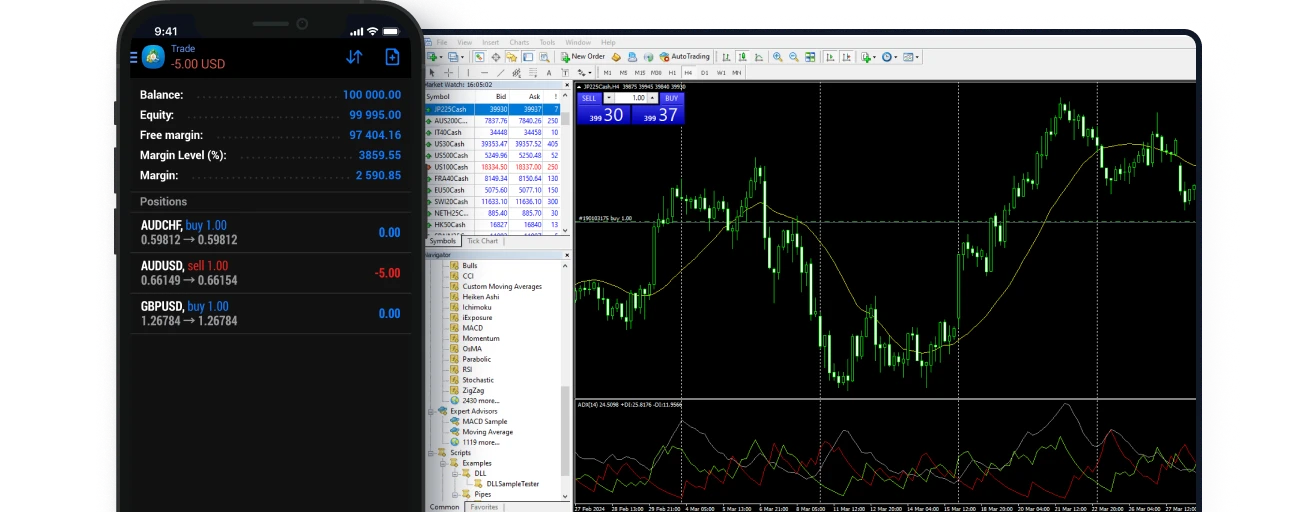
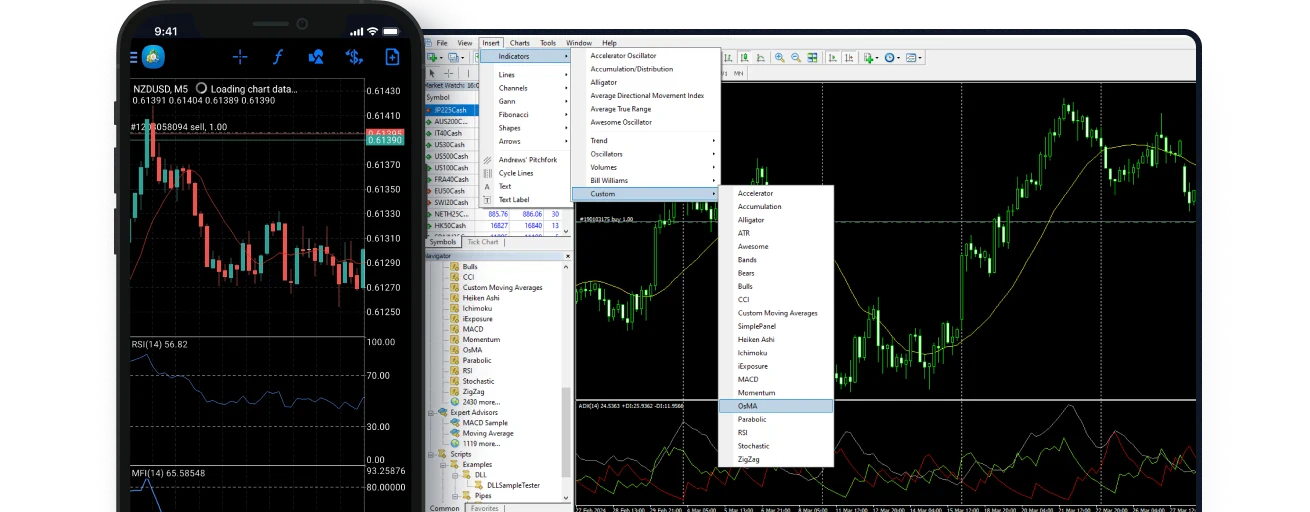
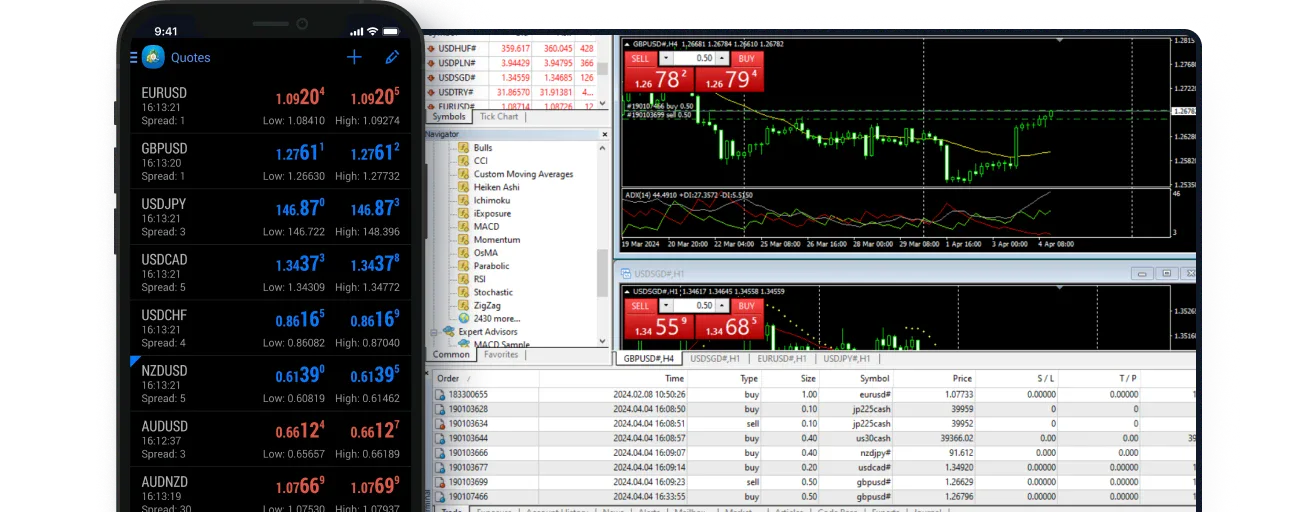
A compatible XM trading account can be accessed through desktop, WebTrader and mobile terminals for the same platform. The MT4/MT5 environment and trading server must match the account.
03
Which devices does XM MT5 support?
XM MT5 can be accessed through desktop, WebTrader and compatible mobile environments. Feature coverage varies by device, while Expert Advisor development, MQL5, MetaEditor and strategy testing are primarily desktop workflows.
04
Is XM App the same as MT4 or MT5?
No. XM App is XM’s own mobile trading application, while MetaTrader 4 and MetaTrader 5 are separate MetaTrader platforms. XM App supports watchlists, Advanced Charts, price alerts, positions, pending orders and trading history, while MT4 and MT5 retain their own account, server and automation environments.
05
Can WebTrader run Expert Advisors?
WebTrader is designed for browser-based account access, charting and order management. Expert Advisors, MetaEditor and Strategy Tester belong to the desktop MetaTrader workflow rather than the browser terminal.
06
What information is needed to log in to XM MetaTrader?
XM MetaTrader login requires the trading account ID, trading password and matching server. XM Profile credentials are used for XM account access, while MetaTrader trading credentials connect the MT4 or MT5 account to its assigned server.

 ZH
 English